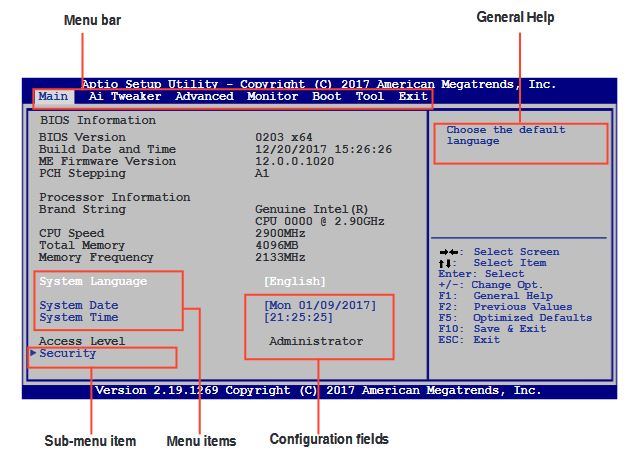
The Main menu screen appears when you enter the Advanced Mode of the BIOS Setup program. The Main menu provides you an overview of the basic system information, and allows you to set the system date, time, language, and security settings.
Allows you to choose the BIOS language version from the options. Configuration options: [English] [French] [Deutsch] [Español] [Русский] [Korean] [简体中文] [日本語 ]
Allows you to set the system date.
Allows you to set the system time.
The Security menu items allow you to change the system security settings.
 |
If you have set an administrator password, we recommend that you enter the administrator password for accessing the system. Otherwise, you might be able to see or change only selected fields in the BIOS setup program.
Select the Administrator Password item and press <Enter>.
From the Create New Password box, key in a password, then press <Enter>.
Confirm the password when prompted.
Select the Administrator Password item and press <Enter>.
From the Enter Current Password box, key in the current password, then press <Enter>.
From the Create New Password box, key in a new password, then press <Enter>.
Confirm the password when prompted.
To clear the administrator password, follow the same steps as in changing an administrator password, but press <Enter> when prompted to create/confirm the password. After you clear the password, the Administrator Password item on top of the screen shows Not Installed.
If you have set a user password, you must enter the user password for accessing the system. The User Password item on top of the screen shows the default Not Installed. After you set a password, this item shows Installed.
Select the User Password item and press <Enter>.
From the Create New Password box, key in a password, then press <Enter>.
Confirm the password when prompted.
Select the User Password item and press <Enter>.
From the Enter Current Password box, key in the current password, then press <Enter>.
From the Create New Password box, key in a new password, then press <Enter>.
Confirm the password when prompted.
To clear the user password, follow the same steps as in changing a user password, but press <Enter> when prompted to create/confirm the password. After you clear the password,the User Password item on top of the screen shows Not Installed.