Troubleshooting
No
display when power on
Can't
enter OS
Power supply does not work
well
The PC works very slowly
CPU
fan is too noisy
Freeze frequently
Can’t
connect to the Internet
4GB
of Memory Installed, Computer only Recognizes 3.0GB or less
Audio is abnormal
How_to_have_dual_video_output
BIOS_Errors
Solution
Make sure all
cables are connected well and the power is on:
Clear the CMOS
Keep
the necessary components (a CPU, a memory
module, and a graphic card) on board to test:
If
the PC does POST
well with the minimum system components:
Solution
Solution
Different
areas have different voltage supplies, please check the voltage selector
on the power supply (115v/230v).
The
power cable works fine: When power
is on, the power LED on the motherboard is on:
Can boot
up via the power pin on the motherboard, please check if all the
hardware
devices are connected well.
Can't boot
up via the power pin, please contact your Service Center.
When
power is on, the power LED on the motherboard is still off:
If
convenient, please test the power supply in another PC which is working
fine.
The
power cable is faulty, please change the power cable to check if this
might be the problem.
Solution
Before
entering the Operating System
Hangs during POST, try to determine
which device is always being searched when the
PC hangs:
Take off the unnecessary device to see if that
speeds up the PC.
Change the hardware
one by one
Hangs
at the Windows Login
After
entering the OS, it takes a long time to see the desktop
Click“ Start”—“ Run”, input “ msconfig”, enter”
System Configuration Utility”—“ Startup”, cancel the unnecessary
boot up
items
Check if caused by any incompatible software
Please optimize the system
Only
runs slowly when using some special software
Check if the system configuration fulfils the
minimum requirement of the software
End the process which takes up the most CPU usage
Please optimize the system
Only
runs slowly when connect to the internet
An abnormally high temperature causes
the slow speed
Check the fan settings in the BIOS
Improve the heat transfer conditions
Please optimize the system
Solution
Check
if the CPU fan is damaged and whether the fan is well connected to
the motherboard
Please
clean the CPU fan since this problem may be caused by dust. Please
put on some CPU lube if necessary
Please
check if the CPU fan always runs at a high speed
Check
if the settings in the BIOS
is correct
Please
check if the problem only appears when the CPU load is high.
Solution
Freeze/ Hang during POST
If
some new hardware
has been installed, please un-plug the new hardware
for a test
If
there is no new hardware
added, please only keep the necessary components to have a check
After POST and before entering OS
If
you could enter safe mode successfully, please enter safe mode to
un-install the drivers and the software
If
not, please re-install a new clean OS
After entering OS
Solution
Check the LAN settings in the BIOS
Install
a new clean OS and install the chipset and LAN drivers downloaded from the official
website
The
network adapter
might not be recognized in Device Manager
If there is yellow question
mark or exclamation mark before the network
card in the Device Manager, please re-install the OS and drivers.
If the problem persists, please contact our service center.
If there is no yellow
question mark or exclamation mark before the network
card:
In Control Panel/Network Connections/Local
Area Connection, the network
cable is shown as “un-plugged(X)”, please check the network cable/router/switch/modem/other network peripherals
and network
port, or plug network
cable to another system
In Control Panel/Network Connections/Local
Area Connection is disabled (grey), please enable(right click
and choose “Enable”) it for a test. If the problem persists,
please turn off the firewall,
search for and kill any virus,
reinstall the OS and drivers. If the problem still exists,
please contact our service center
In Control Panel/Network Connections/Local
Area Connection is shown as “Limited or no connectivity” (yellow
exclamation mark)”, please do some troubleshooting using the
following steps:
Right click and choose ”repair”
Un-plug
and re-plug the network
cable
Check
server
DHCP settings, IP configuration, seek advice from your
Internet
Service Provider
Restart
Re-connect
the network
or access IP
Skip
the router and connect to the Modem
directly
Turn
off other computers in the same network
to avoid any IP conflicts
There is no abnormal
situation in Control Panel/Network
Connections/Local Area Connection, please do some troubleshooting
using the following steps:
Try to access the IP or
Static IP automatically
Un-plug
and re-plug the network
cable
Check
server
DHCP settings, IP configuration, seek advice from ISP
Restart
Re-connect
the network
or access IP
Turn
off other computers in the same network
to avoid any IP conflicts
Check the MAC address (You
can follow the commands: “ Start”—“ All Programs”—“ Run”,
Please input “ cmd”, and
then input “ ipconfig/all” to check MAC address
If
the network
card is not recognized in Device Manager, please contact
our service center
Solution
If
you
installed a total of 4GB of memory,
the system will detect less than 4GB of total memory
because of address space allocation for other critical functions,
such as:
System BIOS
(including motherboard, add-on cards, etc…)
Motherboards resources
Memory
mapped I/O
configuration for AGP/PCI-Ex/PCI
Other memory
allocations for PCI devices
Different onboard devices and different
add-on cards (devices) will result in a different total memory size.
On an SLI system, since PCI Express graphic cards will
occupy around 256MB, another 256MB will be occupied after
you install a 2nd PCI
Express graphic card. Hence, only 2.75GB of memory is left if two
SLI cards are installed while 3.0GB memory is
left with one graphic card.
This
limitation applies to most chipsets and to Microsoft Windows
32-bit version operating systems.
With a Windows 32-bit version of the
operating system, we recommend
that you have less than 3GB of total memory
installed. If more than 3GB memory
is required for your system, then these two conditions must be
met:
The memory controller which
supports memory swap functionality must
used. Chipsets later than Intel 975X, 955X, Nvidia NF4 SLI
Intel Edition, Nvidia NF4 SLI X16, and AMD K8 CPU
architecture support memory swap function.
Installation
of a Windows 64-bit Operating System, which
can address more than 4GB of memory.
Solution
Abnormal input/output
There
is a yellow question mark before the audio device in Device Manager
There
is a yellow exclamation mark before the audio device in Device Manager
First un-install all the drivers related to the
audio device and install the patch "MICROSOFT UAA Function
Driver for High Definition Audio" for the Operating System
Restart the PC, if the problem still
persists, please recover the system or re-install the Operating System and
load the latest audio device driver
The
audio device could not be recognized in Device Manager
Load the default BIOS, making sure the
onboard audio function is enabled in BIOS
Re-install a new clean Operating System
No
output or
input from the rear panel
Adjust the audio settings in the Control Panel
Update the Audio driver
Change the Audio device, such as the microphone,
earphone or speaker
No
output or
input from the front panel
Please check if there is any output/
input from the rear panel, if not, please do some troubleshooting
Change to [AC97]
mode in the BIOS
(if the front panel module is AC97
compliant)
Adjust the audio settings in the control panel
Check if the front panel is connected correctly
Try swapping for another chassis front panel
connector
Abnormal
Sound: Sound
is low
Adjust the audio settings in the
control panel
Close some sound resources which have not been
used for a while, such as SPDI/F, MIC
Update the audio driver
Change the Audio device, such as
the microphone, earphone or speaker
Sound with Noise:
If caused by a magnetic field, please move the
computer away from the field to see if that is the problem
Adjust the audio settings in the control panel
Close some sound resources which
have not been used for a while, such as SPDI/F, MIC
Update the audio driver
Change the Audio device, such as the microphone,
earphone or speaker
How
to have dual video output
 |
Our Desktop PCs commonly support VGA,
DVI,
DisplayPort and HDMI ports. The display output ports may
vary with different models. If you are having issues building
dual display output or other problem,
please contact our service desk for further troubleshooting.
Please make sure to describe the symptom in detail.
|
Connect one end of the cables to the
two different monitors and the other ends to the video ports on the
back of the computer. If the connections of your monitors do
not match the video connections of your computer, you may require
a cable adapter that allows you to get the video signal to the monitor. At the bottom
of this page there are photos of the various cables and some popular
cable adapters.
How to set the output
mode in system:
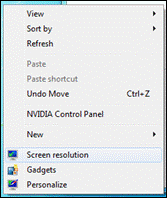
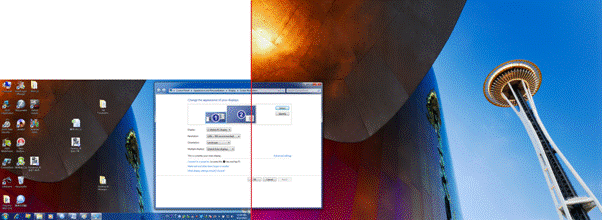
Select the Duplicate these displays in Multiple displays scroll down list:

Then it will show the same desktop
on your monitors. The maximum resolution is limited by the highest resolution
support of your monitors.
If you select “Extend these displays”,
it will allow you set the resolution of each monitor
separately.
In this mode, it allows you to show
different information on two monitors. Just drag the window out of the
current desktop then you will see it in the second desktop.
Display
on Monitor
1: Display
on Monitor
2:
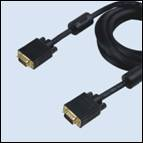
VGA
to VGA
|
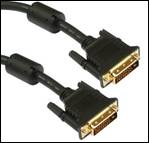
DVI-D
to DVI-D
|
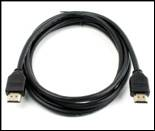
HDMI to HDMI
|
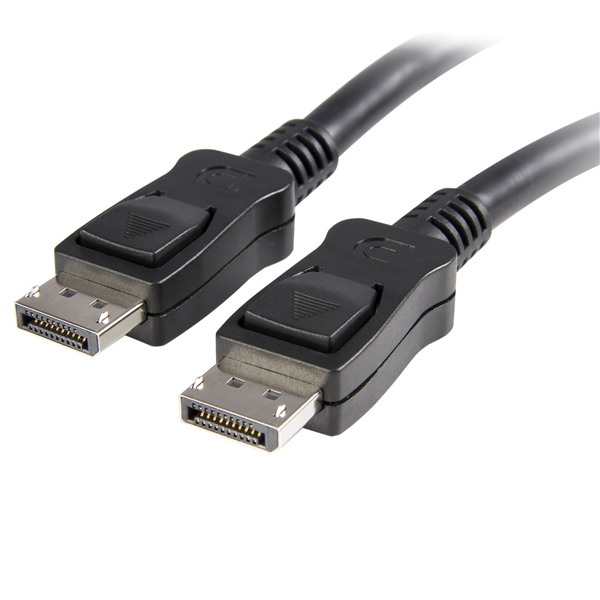
DisplayPort to DisplayPort
|
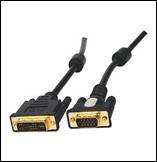
DVI-I
to VGA
|
|
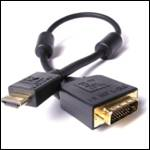
DVI
to HDMI
|
|
BIOS Errors
BIOS
errors will cause beeping sounds when the computer is trying to POST.
The quantity and duration of the beeps indicate where the error
occurs. The following table gives the most common beep patterns.
BIOS
Beep |
Description |
Troubleshooting
Techniques |
| One short beep
|
No
keyboard detected
Graphics Card detected |
- Plug
in keyboard, if not already done.
- Remove
and reinsert keyboard's USB connection to computer.
- Try
plugging keyboard into a different USB port on the system.
|
| Two short beeps |
When using
Asus
Crashfree to recover
BIOS, the new BIOS is successfully recognized |
- No
troubleshooting required.
|
| One continuous beep followed by two
short beeps then a pause (repeated) |
No
RAM memory detected |
- Reseat
the RAM modules.
- Try
a installing the RAM in different DIMM slots.
- Try
using a different RAM module.
|
| One continuous beep followed by three
short beeps |
No
graphics card or integrated graphics detected |
- Ensure
that tne graphics card is installed and seated correctly in
the first PCIe slot. Reseat if needed.
- Check
to see if the graphics card requires extra power directly
from the power supply. Refer to Graphics card literature.
|
| One continuous beep followed by four
short beeps |
Failure
of hardware component |
- Call
Northern Micro for support.
|